Practical guide
How to make a Hotel Lobby AI TikTok series
Build a repeatable two-person TikTok format with the orange performance scene, a clear left/right photo order and fresh episode premises.
Built for a recurring account format
Creator format brief
Use this before generating so one post creates a clear next-post decision instead of another isolated clip.
- Viewer trigger
- A viewer immediately recognises a duo they would tag or compare.
- Series promise
- Unexpected pairs enter the same orange performance scene, with a new familiar situation each time.
- Opening line
- When [two roles] have to handle [one familiar situation].
- Cover rule
- Keep both faces and the hanging microphone visible in the same frame.
- Comment prompt
- Who should be the next unlikely duo?
- Next episode
- Turn the clearest suggested pairing into the next episode, then change the situation.
In this guide
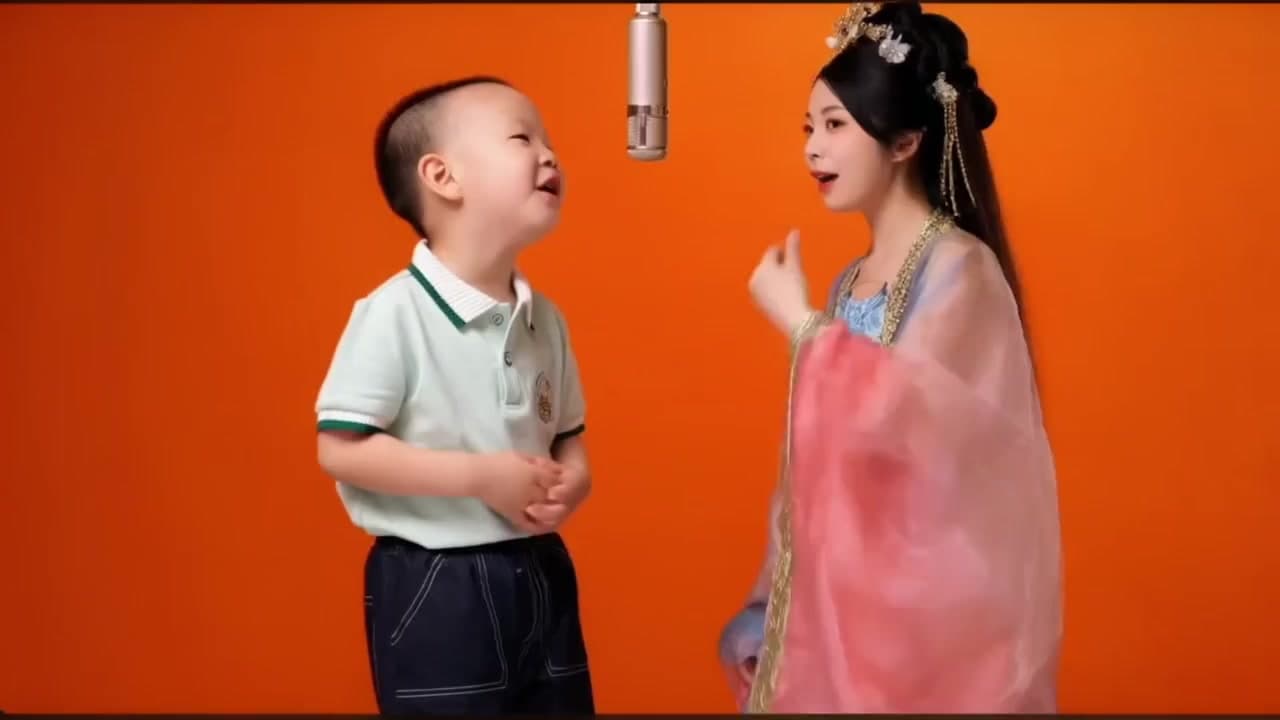
The Hotel Lobby AI video is the orange two-person performance scene with a hanging microphone. For a TikTok creator, its value is a repeatable duo format: keep the recognisable scene, then change the pair and the situation in every episode. Upload two separate, clear portraits: photo 1 becomes the performer on the left and photo 2 becomes the performer on the right. The template supplies the stage, camera and movement, so you do not need to film a performance or upload a source video.
Is this the version I mean?
Use this guide when the reference has two people performing together in a warm orange studio-style scene. The useful search intent is usually “two-photo Hotel Lobby AI video” or “orange microphone meme.” A crowded group photo is a different input problem, and a hotel room or lobby tour is a different scene.
What you need
- Two separate portraits, one person per file, used with permission.
- A clear face with minimal obstruction. A normal portrait is enough; a matching costume or microphone is not required.
- The correct upload order: photo 1 is the left performer, and photo 2 is the right performer.
The orange backdrop, microphone, framing and performance are part of the template. Do not upload a car, room, performance clip or second background image as a substitute for the two identity photos.
How to make it
- Open the Hotel Lobby template and check the live input labels.
- Upload the left identity first and the right identity second. Confirm that both people have agreed to the likeness edit.
- Start with the reviewed 7-second option shown in the supplied lab notes. The checked example lists 140 credits at 20 credits per second; confirm the current total on the generation screen before submitting.
- Watch the complete result at normal speed. Check that both faces stay readable and that the crop keeps both performers in frame.
Seven seconds is a compact scene, not the length of a complete song. A longer option may change the ending or the amount of motion; it is not automatically a better result. Generation requires sign-in and sufficient credits, and the live template page is the source of truth for available durations and pricing.
Turn it into a repeatable TikTok series
Treat this as a recurring account format, not a one-off effect. The series promise can be: “I cast two unexpected people into the same orange performance scene, then give the pairing a familiar everyday premise.” A viewer should understand that promise before seeing the next episode.
Use a different premise each time while keeping the same scene recognisable:
- The two people who handle a shared task in completely different ways.
- A parent-and-adult-child or two-friends contrast, used only with consent and without presenting anyone as a real performer.
- A pair chosen from a recurring account theme, such as colleagues, hobby partners or fictional character types you are allowed to depict.
Write the situation in the first on-screen line, then let the orange scene deliver the visual payoff. Choose a cover where both faces and the microphone are visible. End the caption with one easy comparison question, such as which performer viewers think takes the first turn. That gives the next post a source of prompts without claiming that any format guarantees reach.
Use each post as an operating brief
Before you generate, record five decisions: the audience situation, the two identities, the opening line, the cover frame and the question for comments. After posting, review whether people understood the pairing, tagged someone or suggested a next duo. Turn the clearest reaction into the next episode rather than remaking the same joke unchanged.
What to check before publishing
If the two people appear in the opposite positions, swap the photo order for the next take. If one face is hidden by a hand, microphone or crop, choose a clearer portrait rather than adding a third image. For a vertical social crop, keep the original two-person framing until you have checked that neither side is cut away.
Use only likenesses you are authorised to use. When posting a realistic AI likeness, follow the destination's AI-content disclosure rules. The template is a generated scene; it does not clear the rights to an outside soundtrack or to the reference footage used during production.
Frequently asked questions
Can I replace only one performer?
This article covers the two-photo version. The current role mapping is photo 1 left and photo 2 right; do not assume that one photo will reliably fill both positions.
Do I need a group photo?
No. Use two separate files so the two identity slots are unambiguous.
Is 7 seconds the whole song?
No. It is the checked first-generation duration for a compact performance scene. Review the live duration controls before generating.
Do I need to film myself singing?
No. The template provides the scene and motion. You supply the two identity photos.
Can this grow a TikTok account?
No template guarantees views or follows. It can support a growth test when the account gives viewers a consistent reason to return: a clear recurring premise, recognisable packaging and a new situation in each episode.
The matching next step is the Hotel Lobby template, where the current input labels, duration options and displayed credit total are shown together.
From your photo to a scene